CAD troubleshooting
How to check DXF map scale and units in AutoCAD
A DXF can look right on screen and still enter your project at the wrong size. Check the drawing's unit convention, a known distance and the destination drawing before you insert or rescale it.
Start with a known sample, not a guess
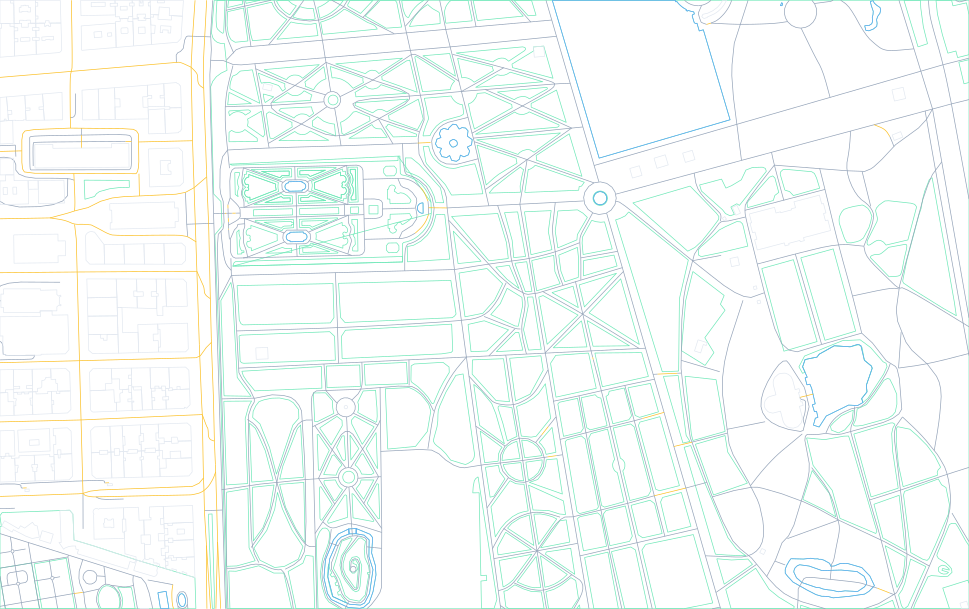
Our El Retiro example covers approximately 969 × 609 m in Madrid. It was generated with Drawrix's DXF V3 generator from OpenStreetMap. The DXF records meters as its insertion units ($INSUNITS = 6); its DRX_VIEWPORT rectangle provides a convenient first size check.
A five-step units checklist
- Open the DXF by itself first. Extract the ZIP and open a copy of the drawing before bringing it into your project. If you cannot see it, zoom to extents and check layer visibility.
- Inspect the unit setting. AutoCAD's
UNITSdialog controls coordinate and distance display settings. TheINSUNITSvariable describes insertion units; value6means meters. Neither a label saying “meters” nor changing that label proves the geometry is correctly sized. - Measure the selection boundary. Use AutoCAD's distance measurement tool to check an edge of
DRX_VIEWPORT. For this sample, expect about 969 units horizontally and 609 vertically. Do not use an arbitrary building width as your only reference. - Check the destination drawing. A project that uses millimeters is different from a source that uses meters. Verify insertion-unit settings on both files, including any unitless settings, before attaching or inserting.
- Verify after insertion. Measure the same edge in the destination. Approximately 969 meters corresponds to 969,000 millimeters. If a conversion was already applied during insertion, do not apply it a second time.
What common size errors usually suggest
| Symptom | First check |
|---|---|
| Map is 1000× too small or large | A meters-to-millimeters mismatch, or the same conversion applied twice. |
| Map is about 3.28× different | A possible meters-to-feet mismatch. Verify unit settings and a known distance. |
| Blank view after opening | Zoom extents, visible layers, and whether you opened the extracted DXF rather than the archive. |
| Size matches, but alignment does not | Origin, rotation and coordinate-reference assumptions. Correct scale alone does not georeference a drawing. |
These are diagnostic clues, not proof. The sample is a local CAD context drawing; do not assume it shares your survey's coordinate reference or vertical datum.
Model size and print scale are different
Keep the model in its intended real-world units. Set the presentation scale in the layout or viewport instead of shrinking the source geometry to fit a sheet. A 1:500 label on a layout does not correct a source drawing whose units were misinterpreted.
The SVG in the same ZIP is for graphic editing. Its canvas uses pixels; it is not a second metric CAD drawing. See the DXF versus SVG format guide before choosing a workflow.
What this check cannot establish
A correctly scaled file is not necessarily a survey-accurate file. OSM coverage and accuracy vary. Building footprints, park edges and paths are useful context, but legal boundaries, construction dimensions and levels need authoritative project information. This sample includes no contour lines or 3D geometry.
Create your own map context
Select a location, choose DXF and check the resulting drawing before combining it with your project. Generation time depends on the selected area, layers and upstream availability.
Open the Drawrix map editorReferences
Autodesk: INSUNITS and its unit values; UNITS command. Sample data: OpenStreetMap copyright and license. This is an independent Drawrix guide, not an Autodesk endorsement.