SVG editing workflow
How to edit SVG map layers in Illustrator
Use real map geometry as the starting point for a site-context diagram. Open the SVG as an editable document, inspect its groups, then establish a clear hierarchy for buildings, streets, vegetation and water before adding your own project annotations.
Use the same real area in SVG and DXF
The example below is El Retiro in Madrid, approximately 0.59 km². The SVG was produced by Drawrix's existing SVG generator from a public OpenStreetMap snapshot. It is vector geometry, not a traced screenshot or an invented city illustration.
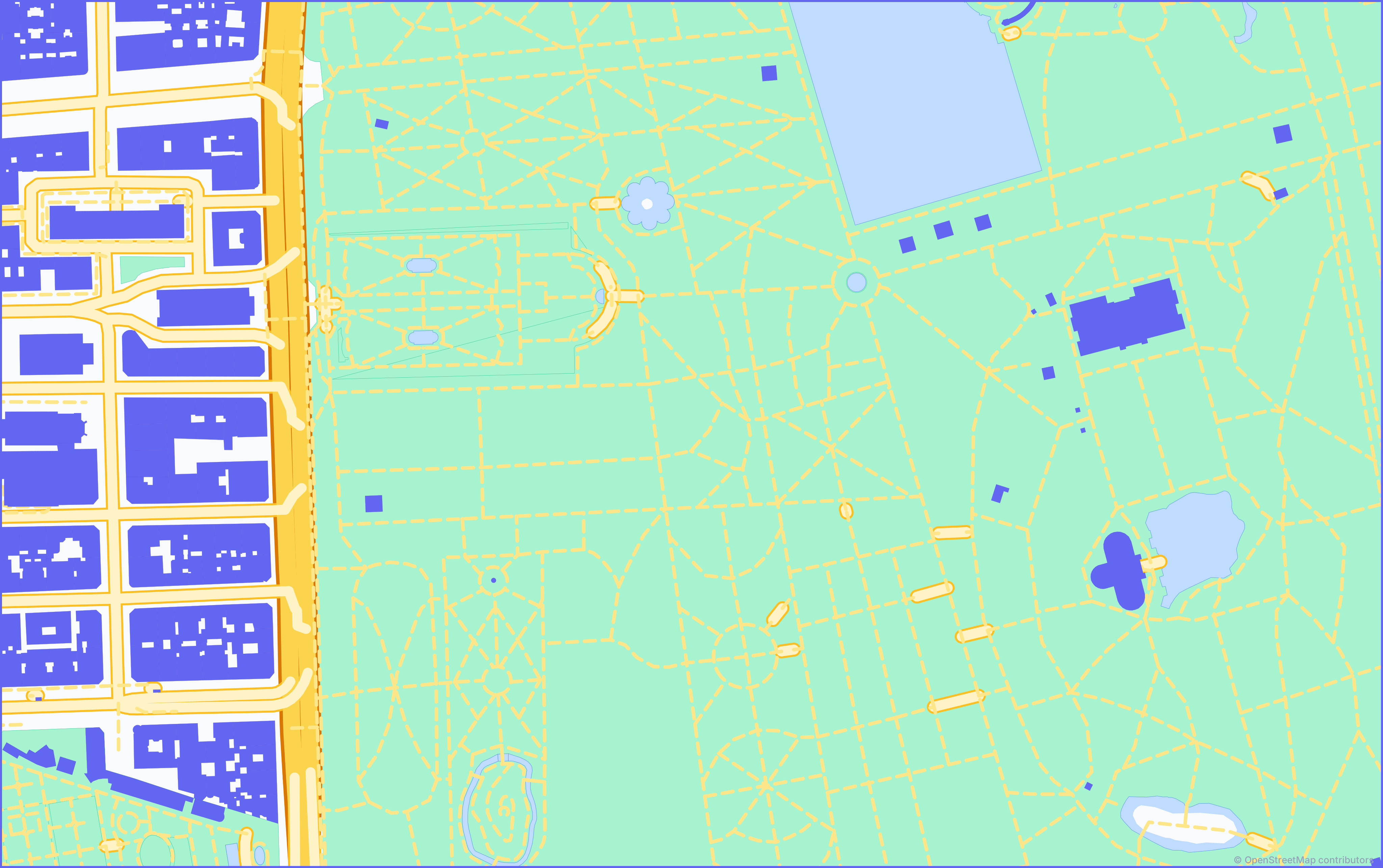
Extract the ZIP and open retiro-layers.svg. The included DXF is for a separate CAD workflow; you do not need to import it to edit the SVG.
Inspect groups before changing the artwork
- Open the SVG as its own editable document. Placing it as a linked image is a different workflow. If you cannot select shapes, check whether you are working with a placed object rather than the SVG's contents.
- Expand the Layers panel hierarchy. The SVG contains named groups. Illustrator's import may show them nested under a parent layer rather than as four top-level layers. Do not assume the initial panel layout is identical in every version.
- Identify the four thematic groups. In this sample the source group IDs are
buildings,roads,green-spacesandfloodplain. The last group holds the blue water geometry in this export; its ID is not a certified flood-risk classification. - Rename or organize groups deliberately. Keep the geometry grouped by theme, lock the groups you are not editing, and avoid ungrouping the entire document at once.
Build a hierarchy, not four competing colors
Start by deciding what the diagram must explain. A circulation study should emphasize routes; a landscape study should emphasize green and water systems. The default export palette is a starting point, not the only presentation style.
| Theme | A useful editing decision |
|---|---|
| Buildings | Use a restrained context fill; highlight the project separately rather than recoloring the entire neighborhood. |
| Roads and paths | Keep primary routes legible at the final sheet size. Test thin lines after reducing the diagram. |
| Vegetation | Use one coherent green family and check overlapping polygons before changing opacity. |
| Water | Use a distinct blue with sufficient contrast against the background and surrounding green. |
Add the project boundary, labels, legend and any analysis as separate authored content. A north arrow must follow the map orientation; this sample is north-up before you rotate the artwork. Do not present inferred movement, sunlight or flood risk as information extracted from these four map layers.
Check the diagram before delivery
- Review the final output size. Zooming into vectors is not a substitute for checking legibility on the actual presentation sheet.
- Keep an editable master. Save your working file before flattening artwork or outlining text for delivery.
- Retain source attribution. Add “© OpenStreetMap contributors” with the appropriate license link or printed attribution for the medium. Do not crop it out of the presentation.
- Do not invent metric scale from the SVG canvas. The sample uses a 4096 × 2572 pixel canvas. That is not 4096 × 2572 meters. Use the DXF and a verified metric workflow when dimensions matter.
- Check coverage. Missing objects or unusual footprints can reflect OSM data quality. Verify important project information independently.
How this differs from importing a map image
A screenshot can be useful as a visual reference but does not provide individually editable building and road shapes. This SVG stores vector geometry in thematic groups. It remains a source-data-based context diagram, not a complete architectural site analysis or a survey.
For the earlier import stage, see importing map data into Illustrator or Figma. For measured drawing work, follow the DXF scale checklist.
Choose your own site context
Open Drawrix, select a compact area and generate an SVG. Keep the original export alongside your edited diagram so you can return to the source geometry.
Open the Drawrix map editorSources and method
The sample was generated locally with the unchanged Drawrix SVG generator. Its README documents the source bounds and exclusions. Refer to Adobe's Illustrator layers documentation for the application workflow and OpenStreetMap's copyright and license page for reuse requirements. Illustrator is an Adobe product; this independent guide is not an endorsement.